You can combine, merge or join several photos into one image right in your browser in a couple of minutes — no software to install and no design skills needed. Choose a layout, drag your shots into the cells, and download the finished picture. The service is free and works on both desktop and phone.
How it works
- Pick a ready-made template or build your own.
- Add photos and drag them into the cells.
- Adjust the canvas size, background and borders between photos.
- Download the result as a single image (JPG/PNG) or a PDF.
Choose a layout
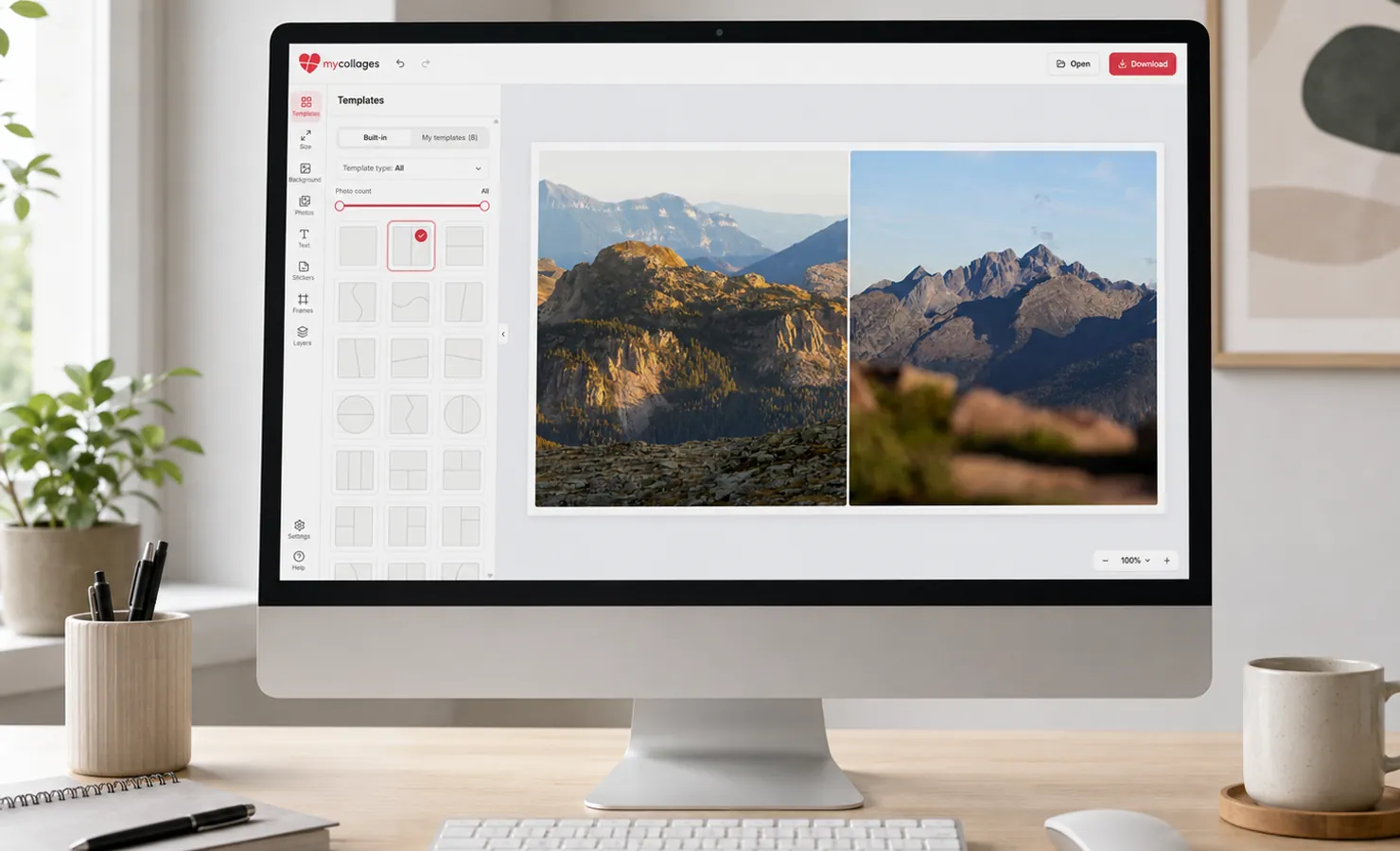
Pick a ready template for the number of photos — plain even grids or creative layouts, including ones with a smooth transition between shots. For something of your own, open the builder (the “+” in the “Templates” section): it makes rectangular grids, freeform shapes (circle, heart, star and more) and can even invent a layout for you in “Generator” mode.
How to combine two photos
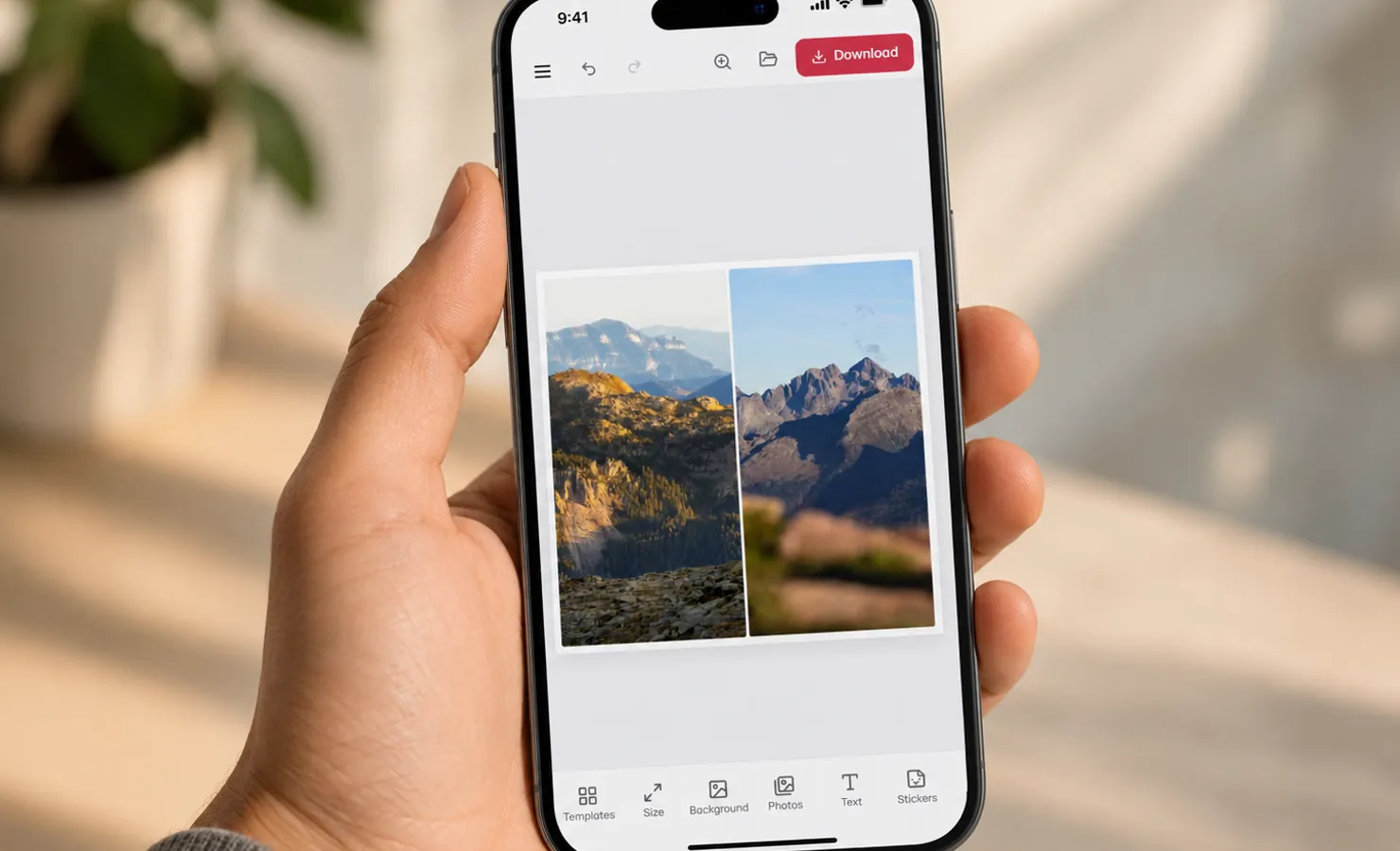
Most often you just need to join two shots — side by side or one above the other. Open a two-cell layout, drag both photos in, and if you like, remove the margins between them with the “Cell gap” slider for a seamless frame from two pictures. Combining 3, 4 or more shots works the same way: just pick a template for the number of photos you need.
Tune the borders and size
Drag your photos into the cells, then dial in the look. The “Outer border” and “Cell gap” sliders add or remove the white margins between shots — from a single seamless picture to a tidy grid with gaps. “Cell radius” rounds the corners, and in “Canvas size” you can pick a ready format (an Instagram post at 1080×1080, say) or set your own width and height for print.
Download one picture
Once you’re happy, click “Download” and save the collage as a single JPG or PNG image (or a PDF for print). For more on formats and quality, see “How to save and download a collage”.
When it comes in handy
Merging photos into one picture is handy for a post or a story, a “before and after” collage, a set of travel shots or a family photo album — all in one frame that’s easy to share or print.