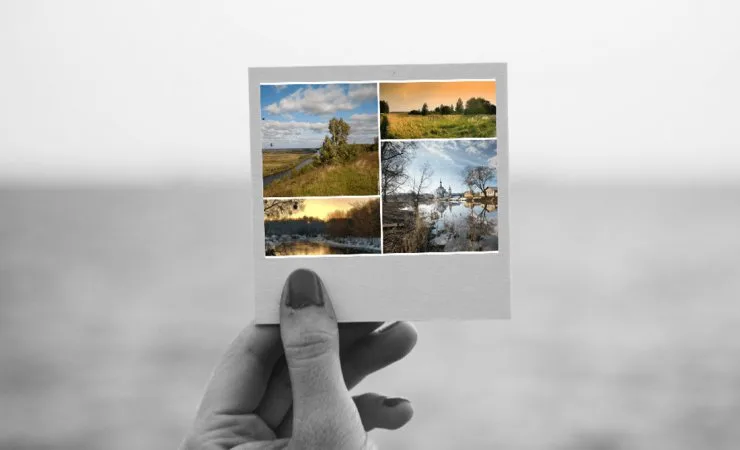
Short articles — from your first collage to your own templates, frames and photo editing.
What MyCollages is and how it works: uploading photos, ready-made templates, the layout builder, photo frames and saving your result. All free, no sign-up, no watermarks.
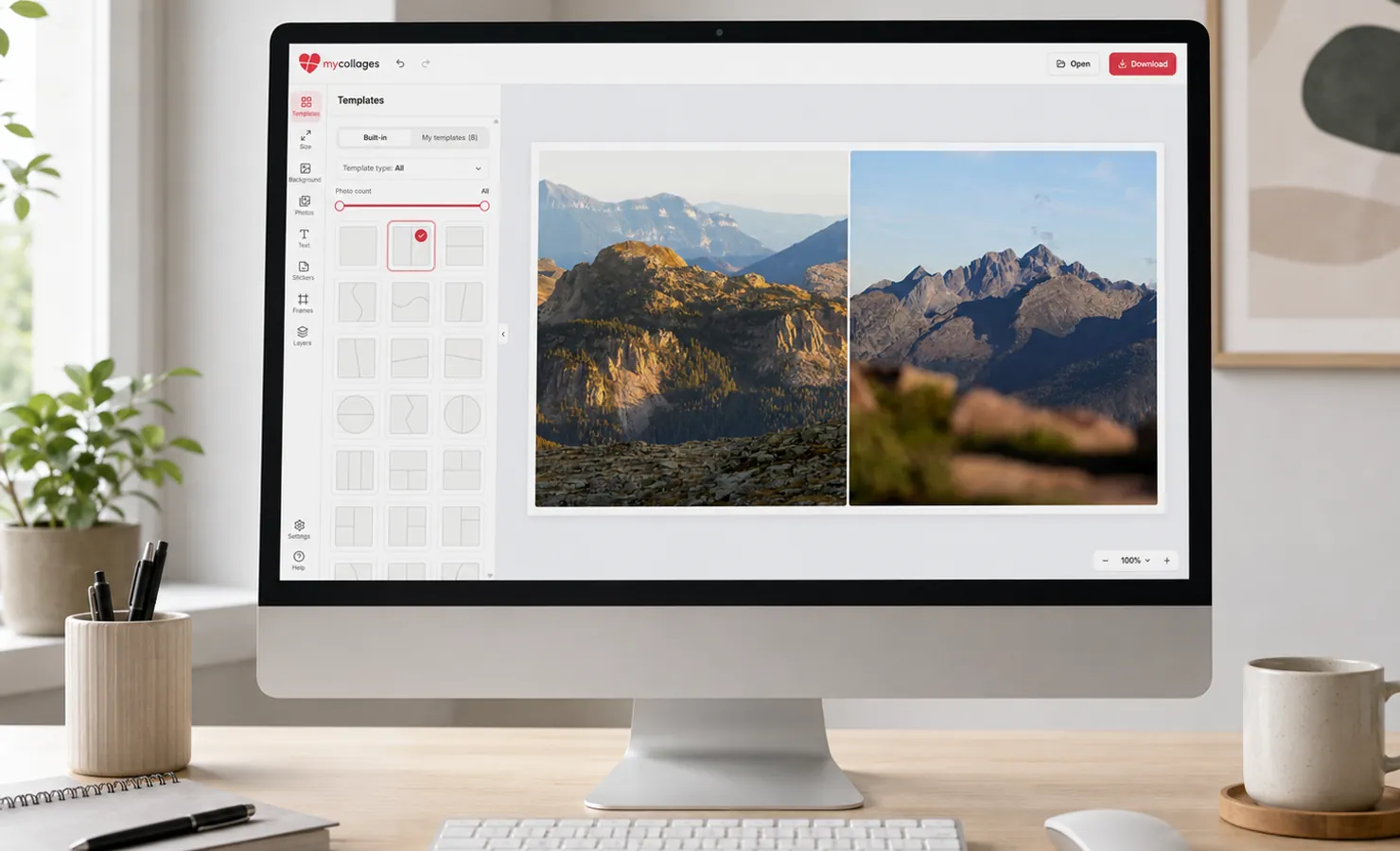
Step by step: upload photos, pick a template, drag shots into the cells and save at the size you need — right in the browser.
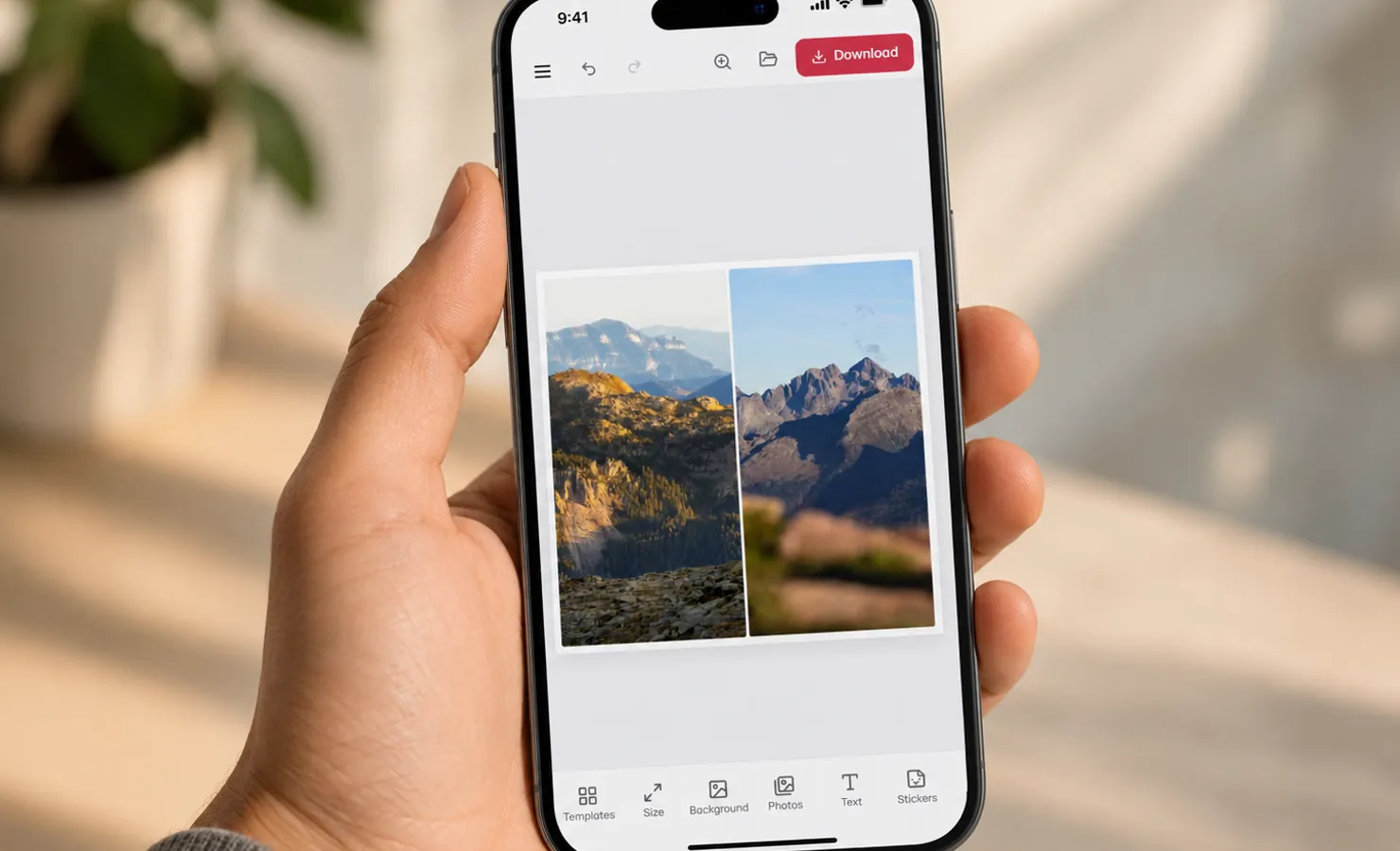
The same editor works on mobile: choose a layout, add photos from your gallery and save the finished collage to your device.
Smart fill arranges your shots into the cells, suggests a template for their count, keeps faces in frame and flags duplicates. All computed in your browser.
Standard vs creative layouts, how to pick a template for your photo count and how to add an artistic frame on top.
How to build a collage from 2, 3, 4, 5 or more photos: pick a ready layout for the number of frames you need and drop your shots in.
The “Shape” tab fills a silhouette with your photos — a heart, a star, a circle, a number or a word like “LOVE”. A ready-made anniversary gift.
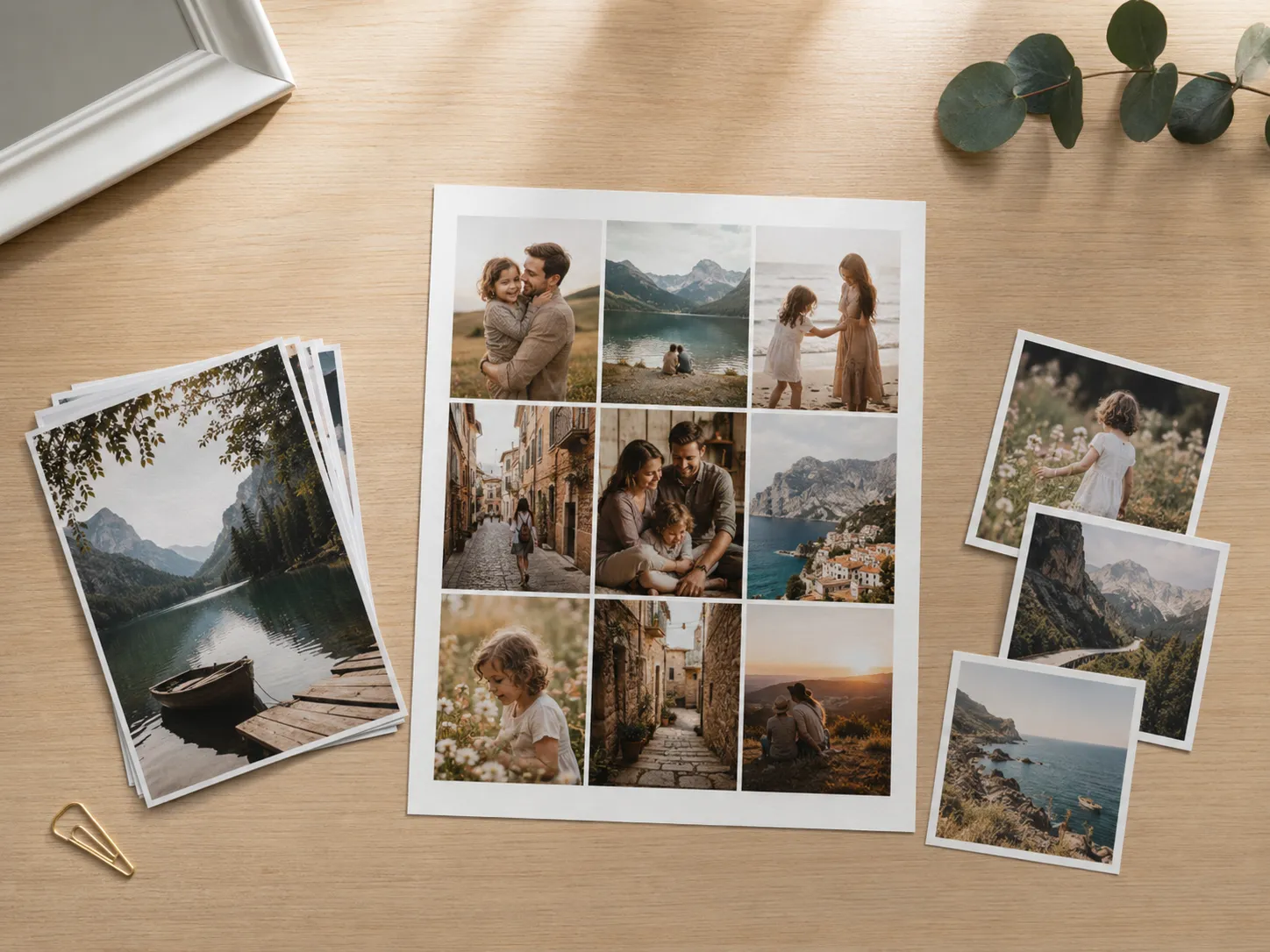
Which canvas format to pick for print — A4, A3, 10×15 or your own size — and how to download a PDF at 300 DPI.
Build a tree-shaped layout in the builder, set a picture of a tree as the background and label the names — a genealogy tree from your photos.
How to add a frame to a finished collage, choose a theme for the occasion and tune mat thickness and corner radius.
The three builder modes: rectangular grids, freeform shapes and the one-click layout generator.
Captions, titles and dates: how to add text to a collage and choose a font, color and size from the built-in typefaces.
Which format and size to save your finished work in for a post, a print or sharing with friends. Where the browser puts the file, and how to save the project to keep editing later.
How to turn a finished collage into a short video for Stories, Reels and TikTok: three animation types, frame size and duration, and MP4 or GIF format.
How to apply a filter to a shot and bring the color and mood of every photo in the collage into one style.
How to merge and join several photos into a single image — in a grid, a collage or a freeform layout, including combining 2 photos.
Basic editing before assembling: crop, rotate, scale and position a shot inside its cell.