Uploaded thirty photos and have no idea which layout to take or what goes where? The editor can assemble the collage for you: pick a template for your photo count, put portraits and group shots into cells that suit them, keep faces inside the frame, and flag the near-identical shots hiding in your set. None of it takes the manual work away — every decision can be redone by dragging.
One thing worth stating up front: all of this arithmetic runs in your browser. Photos are never uploaded to a server and never leave your device.
“Smart fill” — arranges your shots into the cells
Upload your photos, pick any template, then press “Smart fill” in the “Photos” panel (on a phone the button lives in the same photo list). The editor arranges the shots neither in upload order nor at random, but by what fits:
- proportions. A tall shot goes into a tall cell and a wide one into a wide cell, so that as little of the frame as possible is lost when the photo fills its cell;
- faces. Group shots land in the larger cells; a portrait goes where the face fits in full;
- sharpness and duplicates. A less sharp shot won’t take the most prominent cell, and two frames from the same burst won’t end up side by side.
The result isn’t random: pressing the button again on the same photos gives the same layout, which is why it dims and shows a checkmark once the collage already matches. Want something different? Drag a photo from one cell into another, and reposition or zoom an awkward shot inside its cell.
“Match my photos” — let the editor suggest a template
Not sure which layout suits your set? Upload the photos and open the “Match my photos” block on the “Built-in” tab. A “Fits your photos” selection appears at the top of the template list — five layouts chosen by the number of shots and their proportions: the cell count matches first, and the shape of the cells decides the order within it.
Clicking a suggestion applies it together with your photos. If the canvas already holds a collage, the editor asks first whether to replace the layout. The full catalog is still there — standard grids and creative templates; the difference between them is covered in “Templates for a collage and frames”.
Duplicates and the best shots
With many photos there is almost always a burst in the set: five presses of the shutter, five near-identical frames. The editor finds those bursts, marks the thumbnails with a series number, and offers two actions:
- “Remove duplicates” — keeps the sharpest shot of each series;
- “Keep best N” — trims the set to the number you need, and those will be distinct scenes, not N frames of one burst.
Both actions remove photos from the uploaded list and cannot be undone, so the editor always asks for confirmation and states how many shots will go. Photos already placed in the collage stay where they are.
The “less sharp” badge
Besides the familiar quality badges (resolution — green and red), a thumbnail may get a grey one: this shot is less sharp than the rest of your set. The verdict is deliberately relative — the editor compares your photos with each other rather than against some absolute standard, so with fewer than four photos the badge isn’t shown at all. It never deletes anything on its own; it only hints which shot doesn’t belong in the biggest cell.
Faces don’t get cropped
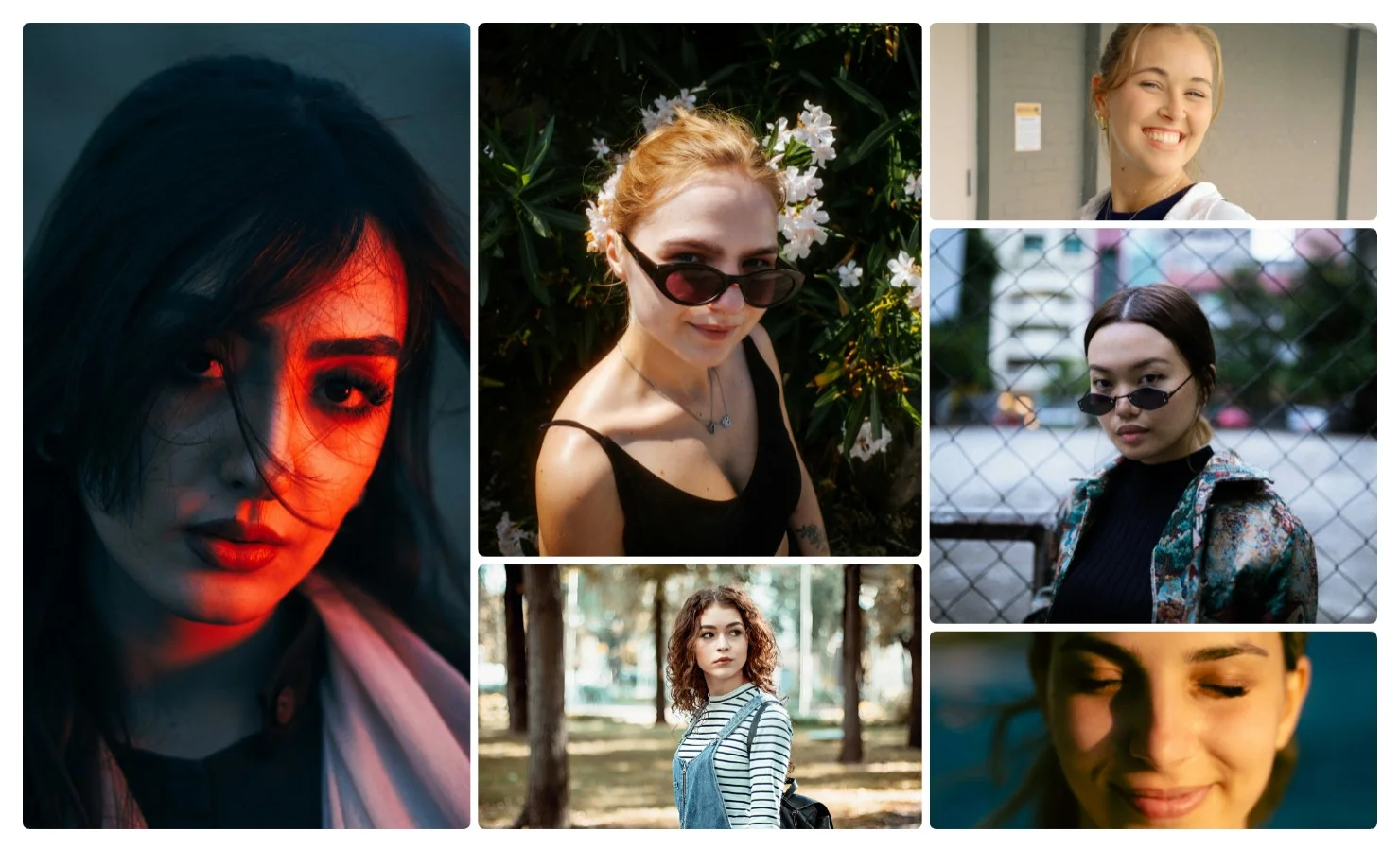
The usual way of fitting a photo into a cell — centre it and scale it up — happily slices a head off, especially in narrow and shaped cells. So the editor looks for faces and picks the offset and zoom that keep them in frame. That applies to smart fill, to simply dragging a shot into a cell, and to creative templates whose visible cell area isn’t a rectangle at all. Look at the collage in the screenshots above: the cells come in several shapes, and no face is cut off by an edge.
Faces are found by a small neural network that downloads once and runs locally, inside your browser. The crop stays entirely yours: open the cell and move the photo if you’d rather frame it differently.
Photos never leave your device
Neither the analysis, nor the face detection, nor the collage itself requires sending photos anywhere — the browser does all of it. That makes the editor safe to use for family and children’s photos: they stay on your computer or phone, and the finished collage is saved by you, to you. No sign-up needed.
Worth knowing
- Very small faces in wide shots (a head shorter than about a tenth of the frame height) may go undetected — such a photo is then cropped the usual way, from the centre.
- The analysis is a hint, not a verdict: any photo can still be placed in any cell by hand.
- Smart fill rewrites every cell at once, so use it before fine manual adjustments, not after.
From there it’s the usual collage work: choose a layout for your photo count, set the borders and background, add a caption and save the result.